Download Website Files Recursively with Wget
How I use Wget to download linked files under a web directory, control recursion, and check what was saved.
Contents
Why I use recursive downloads
When I need a local copy of files linked from a web directory, I use Wget. It saves me from opening each link and downloading each file by hand. The command is short, but its boundaries matter.
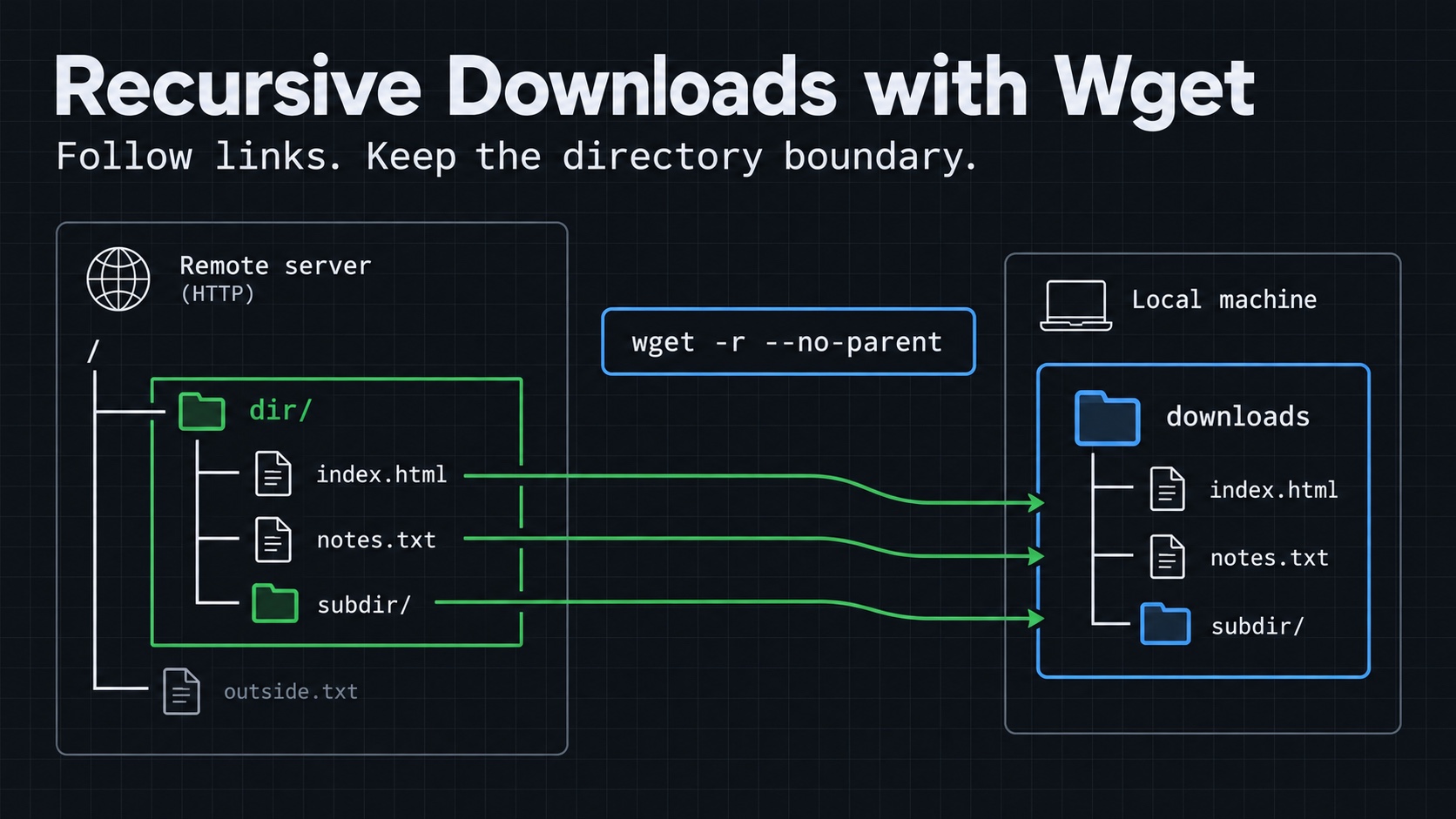
My starting point is wget -r --no-parent URL. The first option follows links recursively. The second keeps that traversal under the starting directory.
There is one correction to my original explanation: this does not download every file stored on the server. Over HTTP, Wget discovers resources through links in the content it retrieves. An unlinked file can remain undiscovered. The default recursion depth is also five levels. See the GNU Wget recursive download documentation.
Before running the command
I need GNU Wget installed, enough local disk space, and access to the directory I want to copy. The local example below also needs Python 3 and two terminal windows.
I check the installed tools first:
wget --version
python3 --version
I tested the example with GNU Wget 1.25.0 and Python 3.9.6 on macOS. Those are the versions used for this check, rather than minimum requirements. Installation depends on the operating system and package manager.
For the example, I work in a new directory so the downloaded files are easy to inspect:
mkdir wget-recursion-lab
cd wget-recursion-lab
Start with a clear directory boundary
The basic command needs an explicit URL. I include the scheme and the trailing slash when the target is a directory:
wget -r --no-parent http://127.0.0.1:8000/dir/
This URL belongs to the local server I set up in the next section. Replace it only when you are ready to download from another server.
| Option | What it controls |
|---|---|
-r |
Follows links recursively. |
--no-parent |
Prevents recursive traversal above the starting directory. |
--level=2 |
Sets the maximum recursion depth to two. |
--directory-prefix=downloads |
Places the local directory tree under downloads/. |
--limit-rate=200k |
Limits the transfer rate to approximately 200 KB/s. |
--wait=1 |
Adds a one-second wait between retrievals. |
--no-clobber |
Skips downloads that would overwrite existing local files. |
The trailing slash helps identify the starting URL as a directory. I also check redirects before relying on that boundary. --no-parent is a traversal control, not an access-control mechanism. The directory-based limits documentation explains its behavior.
Try it against a local website
This small example gives me a linked file, a subdirectory, and a link pointing above the starting directory. That makes the result easy to check.
Create the files
In the first terminal, inside wget-recursion-lab, I create the site:
mkdir -p site/dir/subdir

cat > site/dir/index.html <<'HTML'
<a href="notes.txt">Notes</a>
<a href="subdir/">Subdirectory</a>
<a href="../outside.txt">Outside</a>
HTML

printf 'Local download test.\n' > site/dir/notes.txt
printf 'Nested file.\n' > site/dir/subdir/readme.txt
printf 'Outside the selected directory.\n' > site/outside.txt

python3 -m http.server 8000 --bind 127.0.0.1 --directory site
I leave this terminal running. Binding to 127.0.0.1 keeps the test server on the local machine. Python generates a directory listing for subdir/, which gives Wget a link to readme.txt.
Download and inspect the result
In the second terminal, I change into the same wget-recursion-lab directory and run:
wget -r --no-parent --directory-prefix=downloads \
  http://127.0.0.1:8000/dir/

find downloads -type f | sort
The file listing from my test was:
downloads/127.0.0.1:8000/dir/index.html
downloads/127.0.0.1:8000/dir/notes.txt
downloads/127.0.0.1:8000/dir/subdir/index.html
downloads/127.0.0.1:8000/dir/subdir/readme.txt
Wget saved the starting page, the linked text file, the generated directory listing, and the nested text file. It did not download outside.txt.
I also checked the downloaded content:
cat downloads/127.0.0.1:8000/dir/notes.txt
Local download test.
The Wget process exited with status 0 in this test. I stop the local server with Ctrl+C when I finish.
Keep larger downloads controlled
For a larger directory, I prefer an explicit depth and a modest request rate:
wget -r --no-parent --level=2 \
  --wait=1 --limit-rate=200k \
  --directory-prefix=downloads \
  http://127.0.0.1:8000/dir/
The wait controls request frequency. The rate limit controls bandwidth. Neither limits the total amount of data saved, so I still watch available disk space. GNU documents these settings under download options.
For repeated downloads, --no-clobber helps preserve files already present. I do not treat it as synchronization: it can leave me with an older local copy when the remote file changes. It is also different from resuming an incomplete download.
Common surprises
| Symptom | What I check |
|---|---|
| Connection refused | Whether the local server is running on port 8000. |
| Port already in use | Whether another process is using port 8000. If I change the server port, I update the download URL too. |
| Only the starting page downloads | Whether it contains ordinary links to the files I need. |
| Nested files are missing | Whether the recursion depth is sufficient and the files are linked. |
| HTTP 401 or 403 | Whether access requires authentication or the server denies the request. |
| Files look different on a repeat run | Which overwrite or skip options I used, and whether the remote content changed. |
Wget does not execute browser JavaScript. A page that builds its file links in JavaScript may therefore produce a different result from what I see in a browser. A successful download can also be a login page, so I inspect the saved content rather than trusting the filename alone.
Security considerations
I keep downloads within the agreed scope and avoid overwhelming shared servers. For security testing:
Authorized testing only
Only run this against systems you own or have written permission to test.
On a server I maintain, I use authentication and access controls to protect private files. Hiding links or disabling directory listings does not make a known file URL private.
Takeaways
I use recursive Wget downloads for linked files under a known directory. I start with -r --no-parent, check the saved files, and add explicit depth and rate controls as needed. The useful result is a verified local copy of the resources Wget could discover within those limits.
Ask or Share Thoughts
Your message goes straight to me. Email is optional. The form records your IP address and browser information.